
Visa Operations
Visa Operations
Let Trobot handle repetitive visa transfers, so your team can focus on their work
Umrah, tourist visa and Diyanet processes are among the most time-consuming tasks for Hajj and Umrah agencies. In Turasistan App, Trobot takes over the repetitive part of this work: it pulls traveler data from the system, transfers it to the relevant system and shows the result in real time.
Instead of retyping the same information into official portals, your team focuses on review and decision steps.
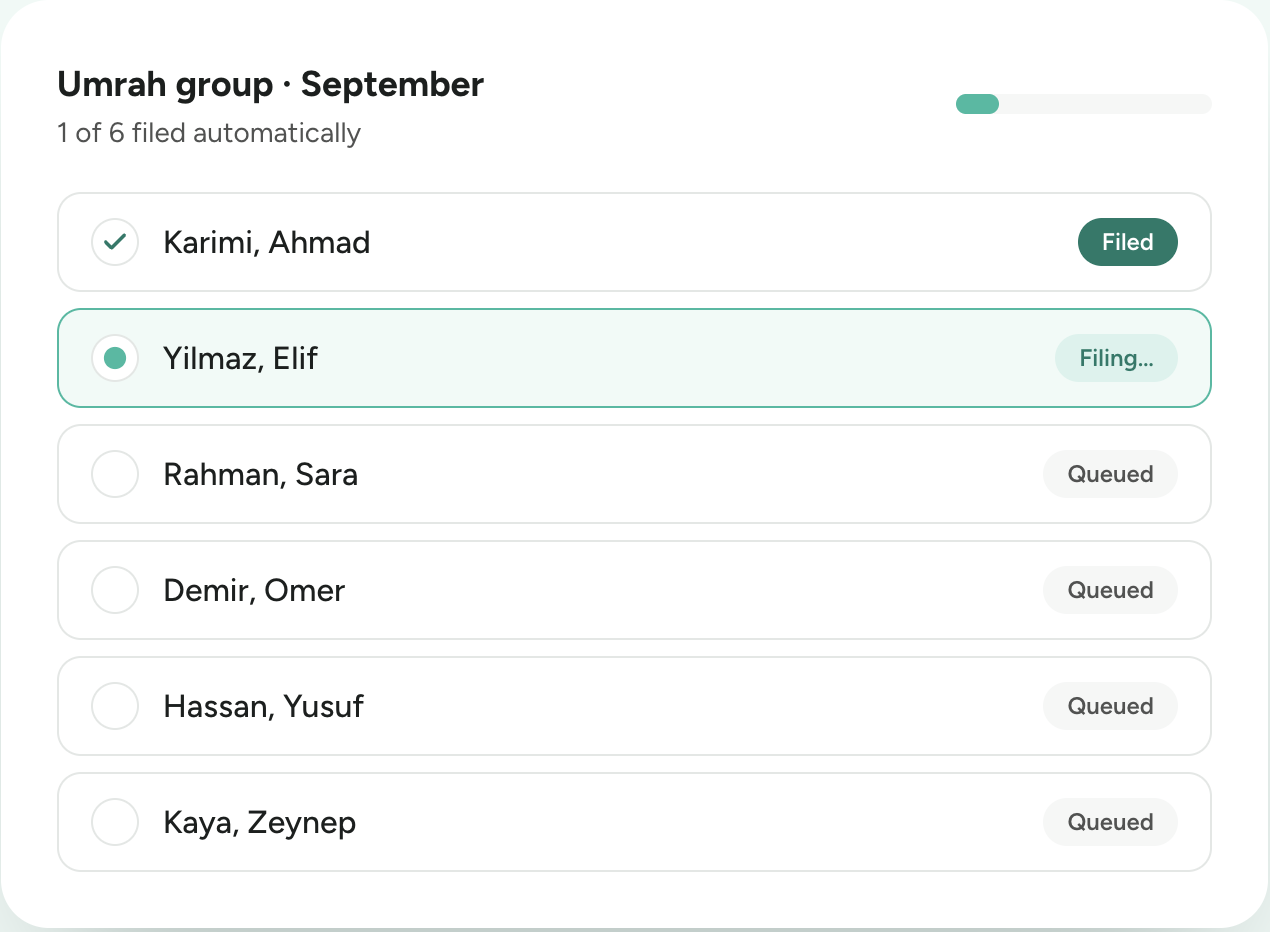
— Trobot
What you can do with Trobot
Diyanet transfer
Transfers travelers to the tour you opened on the Diyanet Hajj and Umrah Software Portal and sends the required photos. All you need to do is enter the tour code provided by Diyanet as the group name.
Tourist visa transfer
Transfers travelers to the Saudi Arabian tourist visa system, creates the group automatically and adds the travelers to it. It submits adults first, then children, and fills in the children's mahram details automatically.
Nusuk transfer
Transfers Umrah travelers to the Mutamer pool on Nusuk; you then create your groups on Nusuk from this pool.
MOFA visa output
Once tourist and Umrah visas are issued, it retrieves the forms from the MOFA visa inquiry screen and saves them as images and a combined PDF to the folder you choose.
Diyanet, tourist visa and Nusuk transfers are included in both the Visa Package and the Full Package.
— Visa groups
Create your visa group
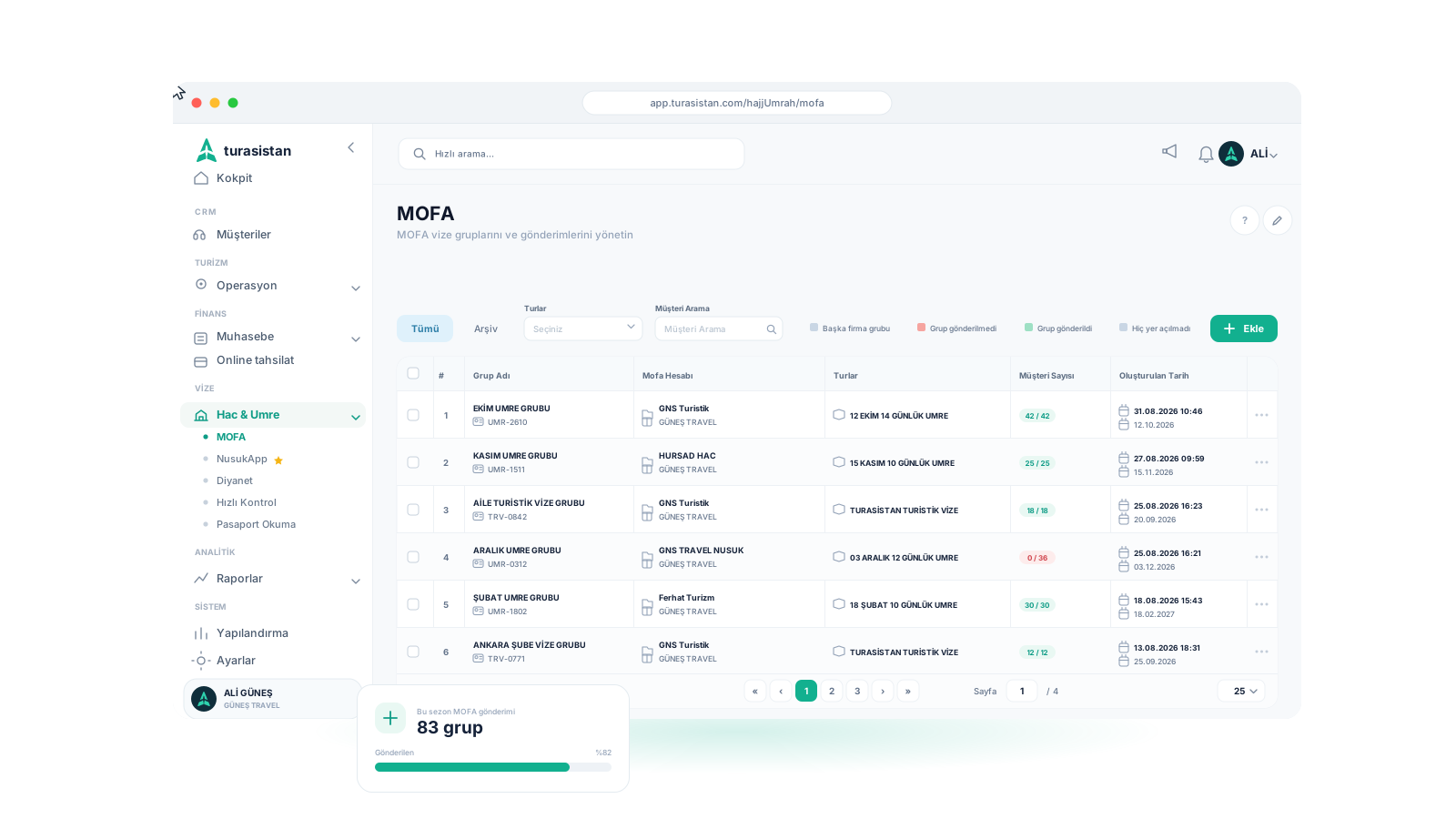
Create tourist visa and Nusuk groups on the MOFA screen, and Diyanet groups on the Diyanet screen. Name your group, select the tour and add travelers in bulk; search by dealer, first name or last name to find the right people easily. Only confirmed travelers can be added to a group, so unconfirmed records are never submitted by mistake.
Before submission, define details such as the group code, account, consulate and departure date. Keep visa notes for each traveler on the same screen.
- ✓Creating groups by selecting a tour
- ✓Bulk traveler selection by dealer, first name and last name
- ✓Only confirmed travelers can be selected
- ✓Group code, account, consulate and departure date settings
- ✓Visa notes for each traveler
— Automatic transfer
One command, automatic transfer
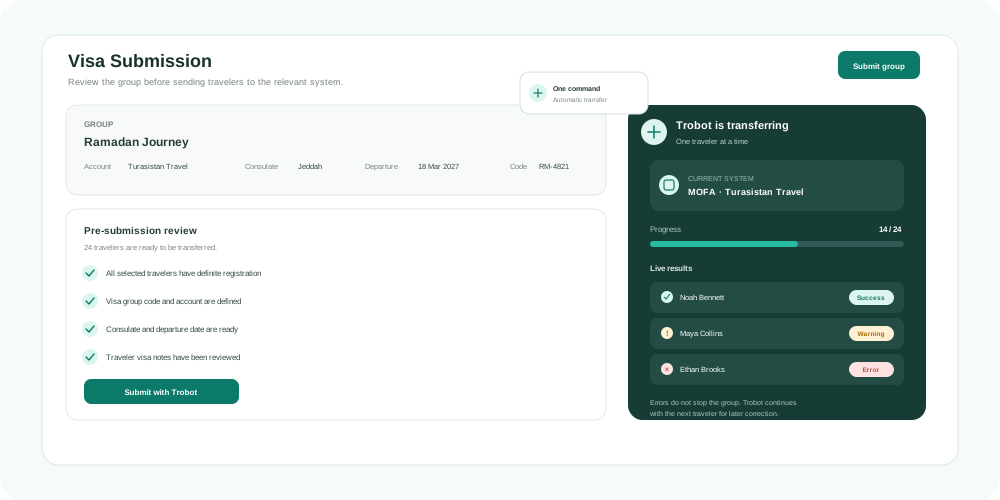
After reviewing the group, give the submit command. Trobot opens the relevant system with the account you defined in Turasistan App, processes travelers one by one and carries out the transfer using the data in the system.
The results screen shows a successful, warning, error or skipped status for each traveler in real time. A single failed traveler does not stop the whole group; Trobot moves on to the next traveler, and you correct the data and resubmit that traveler.
- ✓Pre-submission review
- ✓Relevant system opened automatically with the defined account
- ✓Travelers transferred one by one
- ✓Automatic group creation for tourist visas
- ✓Real-time result per traveler: successful, warning, error, skipped
— Tracking
Submission through another company and status tracking
If you need to submit a group through a partner company instead of your own, select this option when creating the group and enter the company's tax ID number. The system shows the matching company; you verify it and start the transfer through that company.
See all your visa groups in a single list and filter groups that have been submitted, not yet submitted or sent through another company. Track your total visa numbers on your dashboard and your Diyanet data in reports.
- ✓Submission through another company using its tax ID number
- ✓Submitted, not submitted and other-company group filters
- ✓Traveler count tracking per group
- ✓Visa form printing and group archiving
- ✓Visa summary on the dashboard
- ✓Diyanet report; Diyanet and MOFA statistics reports (Full Package)
— Passport registration
Start with accurate passport data
A smooth transfer depends on accurate traveler data. When you read the passport chip via NFC with Turasistan Reader, the data comes straight from the chip and Trobot uses it for the transfer. All you need is the passport photo for tourist visas and Nusuk, and an ID photo for Diyanet, ready in the traveler's record.
How does it work?
Register travelers
Read passports via NFC with Turasistan Reader.
Confirm the registration
Mark the traveler's status as confirmed in the reservation.
Create the visa group
Select the tour, add travelers in bulk and set the account.
Review and submit
Give the submit command and let Trobot transfer the travelers to the relevant system.
Track the results
Follow the result for each traveler in real time and complete the review and final steps in the relevant system.
Get the visa output
Once the visa is issued, let Trobot retrieve the forms from MOFA and save them to your folder.
Ready to leave your visa transfers to Trobot?
Create your visa groups in Turasistan App and let Trobot handle the transfer.
It transfers travelers to the Diyanet Hajj and Umrah Software Portal, the Saudi Arabia tourist visa system and Nusuk, and also fetches tourist and Umrah visa printouts from MOFA